
Genesis® for Ansys® Mechanical (GSAM/GTAM) adds the power and versatility of Genesis® structural optimization capability to the ANSYS environment. Engineers can enlist the rich breadth of Genesis® optimizations, performing optimization data definition, solving, and post-processing all within the Ansys analysis systems.

Typically, each Genesis® optimization design cycle produces one set of optimization and analysis results. However, the Ansys Application Customization Toolkit (ACT) for add-on external solvers limits the performance of post-processing analysis or optimization results to after the solving is finished. As optimization processes may consist of executing many iterative cycles, the Ansys ACT limitation may introduce delays in the overall engineering design cycle especially when dealing with large models.
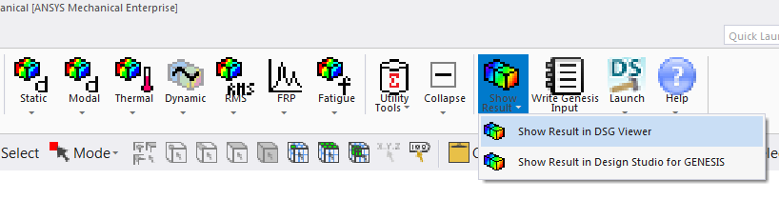
OmniQuest™ Genesis® clients have requested the ability to check results while optimization is running in Ansys Mechanical. A simple and convenient solution is the use of view/check results using a feature of Design Studio for Genesis® Viewer (DSG Viewer) through the ‘Show Result in DSG Viewer’ function.
DSG Viewer is a complementary component of Design Studio for Genesis® which allows importing the model and post-processing Genesis® optimization/analysis results.
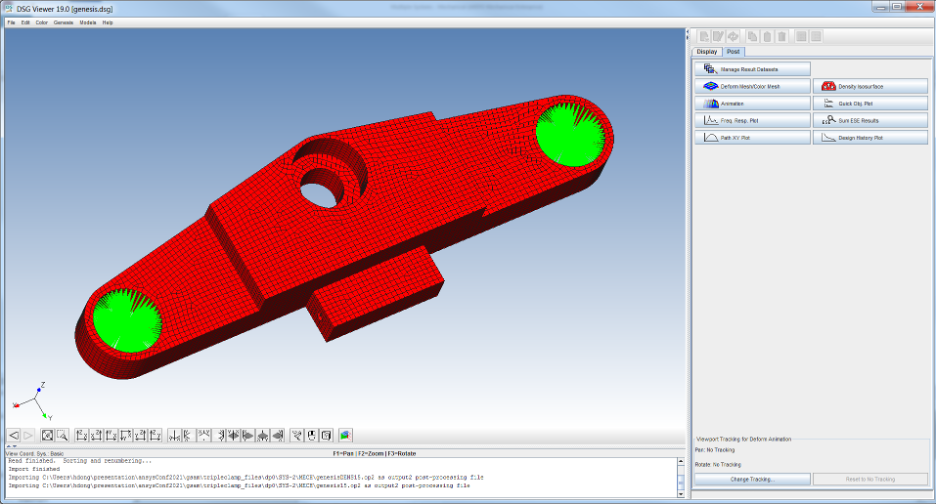
DSG Viewer provides two selection tabs: Display and Post. Controls in the Display tab include Show/Hide Groups (parts), Show/Hide Elements and etc. The controls in the Post tab include Deform Mesh/Color Mesh, Density Isosurface, Animation and etc.
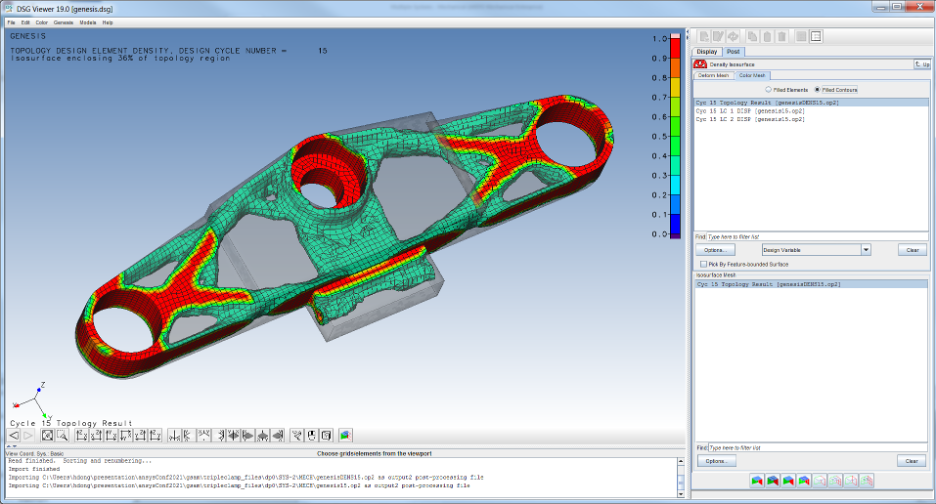
The following image shows the topology density isosurface result in DSG Viewer.
Selecting ‘Show Result in DSG Viewer’ on the Genesis® toolbar in Ansys Mechanical loads the optimization and analysis results from the last completed design cycle to DSG Viewer automatically. DSG Viewer also enables importing of results from other design cycles through the menu selection: ‘File menu’ > ‘Import’ > ‘Punch/Output2 results’.
We will discuss more details about how to use DSG Viewer for post-processing in the next coming article.